Make A Super Hidden Folder Print
Written by mypchell.com   
Monday, 16 June 2008
Image You probably already know how to create just a plain hidden folder. It is super easy, you just right click on the folder and select Hidden then click Apply. The problem is that anyone with access to the computer can easily turn on the Show Hidden Files and Folders and then can easily see the folder you created. Well here is a trick that will get around this problem and create a invisible folder that has no text and no icon.


Note: Click on any image for a larger view of that particular image.


Note: Once you create a Super Hidden folder that it will be up to you to remember where you put it. I suggest writing down the location in case you should ever forget about where this folder is.
 

Right Click on the folder you want hidden, then select Properties
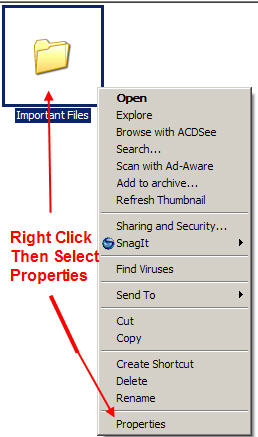
“Right-Click_and_select_properties"

Click on the Customize Tab (Note this procedure also works on any icon, some icons do not let you Customize. So, if you do not see a Customize tab, then you will have to create a new folder and move the icon that you are trying to make hidden into the newly created folder. Then you will make the folder Super Hidden)
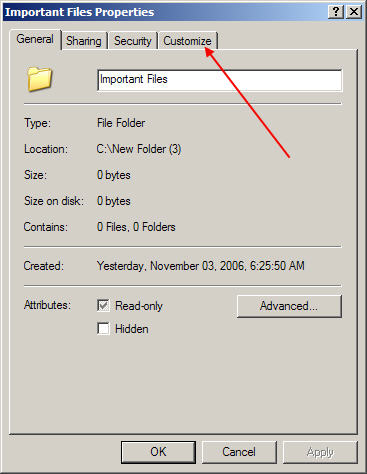
“Click_On_the_customize_tab"

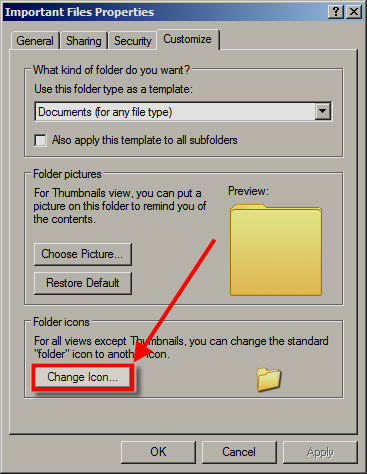
Click On the Change Icon button

“Click_on_the_change_icon_button"

The Change Icon box will pop up with the default Windows Icons (If it does not, then click on the Browse button and navigate to your WINDOWS\system32 folder and then find and choose SHELL32.dll then click OPEN
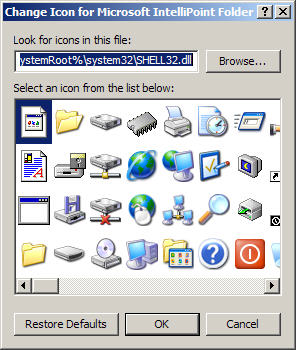
The_Change_Icon_Box

Then Scroll to the right and look for a blank icon. Select the blank icon then click Ok.
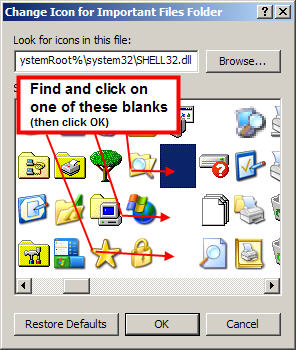
The_Change_Icon_Box

Then Click Apply. And you should now have a blank icon with only the text below it, like this:
Blank_Icon

Now to get rid of the text, follow this procedure How to Remove the Text From An Icon

The result is a SUPER hidden Folder:
Blank_Icon

In the screenshot, I have the view settings on Thumbnails, which puts the grey box around the folder. To remove that box, choose either the Icon, Tiles or List from the View settings
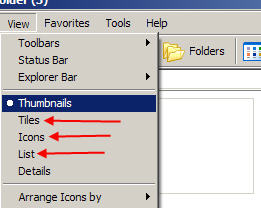
Choose_Icons_Tiles_or_List
Comments (0)add comment

Write comment
quote
bold
italicize
underline
strike
url
image
quote
quote
smile
wink
laugh
grin
angry
sad
shocked
cool
tongue
kiss
cry
smaller | bigger

security image
Write the displayed characters


busy
 
< Prev   Next >
Minneapolis London Tokyo Honolulu

Translate


Recommended Sites

Shell Extension City

Latest Comments

run command
very good
Thank you! Thank you!
Having commenced the set up of a new PC, I found myself on the Windows Vista acc...
na
Yours is a great site I just found, but my Dell Laptop's entire Media buttons do...
very nice stuff
very good work ppl.

Fantastic!!!! very nice!!! It helps lot for me

Who's Online

We have 24 guests online