... the image Stretched you would have to go into the display settings and alter it. Well, not anymore! Follow this guide to set your default to be Stretch, or Center (instead of Tile)
Disclaimer: Warning Serious problems might occur if you modify the registry incorrectly by using Registry Editor or by using another method. Modify the registry at your own risk, Every effort has been made to ensure that registry edit instructions are correct and safe. MyPCHell cannot be held responsible for any damage done to your system by using this guide.
Note: Click on any image for a larger view of that particular image.
Before beginning this guide, please do this
Click 
then 
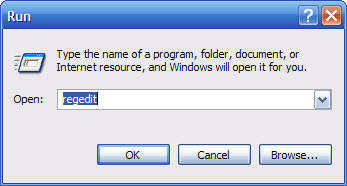
Type regedit then click 
Navigate to the following key:
HKEY_CURRENT_USER\Software\Microsoft\Windows\CurrentVersion\Policies

Under Policies we will need a key named System. If there is no key named System, simply right click on the Policies key and select New, Key and then name it System

Now click on the System key, then on the right hand side right click and select New, String Value then name the string WallpaperStyle

Double Click on WallpaperStyle, and if you want your default to be Stretch, give it a value of 2, if you want your default to be Center, give it a value of 1

Now close the registry editor and test it out on a image (right click on some image and select Set as Desktop Background.