


| Make A Super Hidden Folder |
| Written by mypchell.com | ||||||||||||
|
Note: Click on any image for a larger view of that particular image.
Note: Once you create a Super Hidden folder that it will be up to you to remember where you put it. I suggest writing down the location in case you should ever forget about where this folder is.
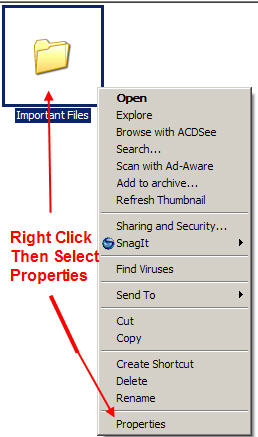
Right Click on the folder you want hidden, then select Properties
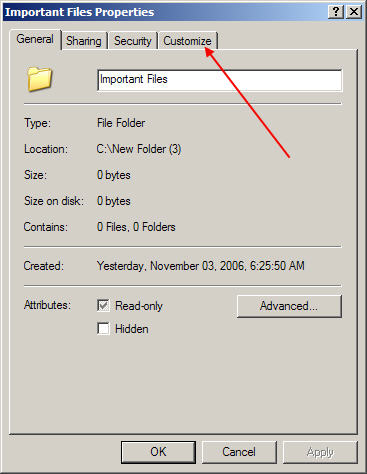
Click on the Customize Tab (Note this procedure also works on any icon, some icons do not let you Customize. So, if you do not see a Customize tab, then you will have to create a new folder and move the icon that you are trying to make hidden into the newly created folder. Then you will make the folder Super Hidden)
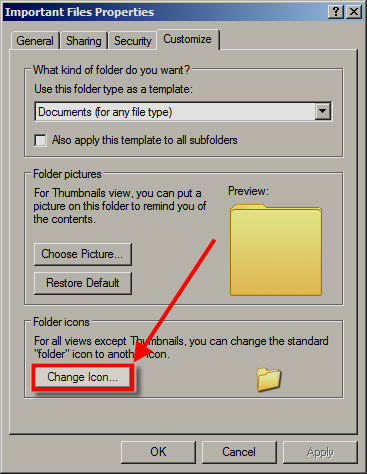
Click On the Change Icon button
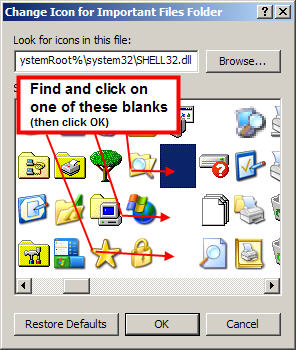
The Change Icon box will pop up with the default Windows Icons (If it does not, then click on the Browse button and navigate to your WINDOWS\system32 folder and then find and choose SHELL32.dll then click OPEN
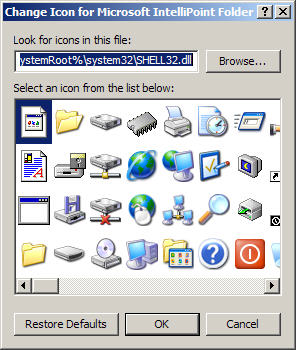
Then Scroll to the right and look for a blank icon. Select the blank icon then click Ok.
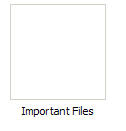
Then Click Apply. And you should now have a blank icon with only the text below it, like this:
Now to get rid of the text, follow this procedure How to Remove the Text From An Icon The result is a SUPER hidden Folder:

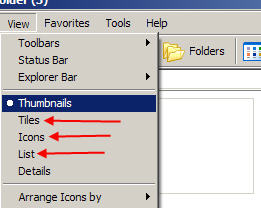
In the screenshot, I have the view settings on Thumbnails, which puts the grey box around the folder. To remove that box, choose either the Icon, Tiles or List from the View settings
Similar articles
Set as favorite
Bookmark
Email This
Hits: 21232 Comments (3)
![]()
aary kumar
said:
|
it is very nice side from which we can learn unique thing befor we did not see. |
|
|
report abuse
vote down
vote up
|
|
Nice one. I've not thought of a blank icon yet, but another way to hide a folder when you've done removing the name and icon, and you're still paranoid, is to go to command prompt, Start > Run > cmd, and navigate to the directory of the folder you want to hide, e.g.: C:Documents and Settings'username'My Documents> and say you want to hide your 'Finances' folder, simply type in: attrib h s r finances and press enter. The h changes the folder to a hidden folder, the s changes it to a system folder and r changes it to a read only folder... to remove these settings, simply type the same syntax but with -h -s -r to remove the relevant properties: attrib -h -s -r finances Even if you enable 'show hidden files and folders' under folder options, the folder will still be hidden unless you uncheck the box 'hide protected operating system files'. But by removing the name on a folder I've noticed it is moved to the top of the list in folders (if listed alphabetically), so a blank folder will appear as a space at the top and will kind of give away the game... |
|
|
report abuse
vote down
vote up
|
|
Dude u want to know an easier way? open Folder Go to tools Folder options View tab Then this is where its a little weired... Rite under the check boxes for displaying hidden files and folders, theres a checkbox for either hiding or displaying known file extensions. uncheck that box and hit apply. then it will show all the file extensions. say, for instance, that you have an image named "Image" it will now be displayed as "Image.jpg" highlight and delete the extension .jpg and replace it by .txt a warning box will appear telling you that if you change the extension of a file than you could irreparably damage the file. just click yes. then you can renname the file, such as "Doc.txt" now you have a file that is unable to be used by anyone but you. just go back into the folder options and follow that path until you get to the view tab again and hide all the extensions so they arent displayed. |
|
|
report abuse
vote down
vote up
|