- How to Create a Template
- From the menu: File – Save As
- In the Files of Type box, click on the arrow to the right, scroll down the list to find 'as a template'
- Name the template.
- Click on Save
- Close the program
- How to Open a Template
- Saving a Document Created With a Template
- Create a Template From a Received File
For example, you might use template in Microsoft Word that is formatted as a business letter. The template would likely have a space for your name and address in the upper left corner, an area for the recipient's address a little below that on the left site, an area for the message body below that, and a spot for your signature at the bottom.
Templates can be created for many programs including Excel and Word. As these are the most common office applications that are used, this guide will use them as examples. The principle is the same for most programs that create templates.
The beauty of a template is that you can recreate the document without fear of the user altering the original format and design, as often as it is needed.
Create your document with the layout and formatting you want, including data 'hints' where the user is required to fill in details. ( usually show this in this format [ENTER DATE] . This would indicate to the user that they should overtype '[ENTER DATE]' with the date. The example below is a simple spreadsheet for recording cheque payments.
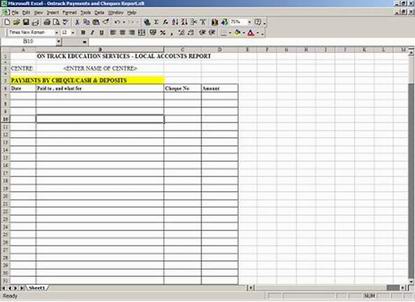
 Full size image
Once you are satisfied with the layout of your document, you need to save it as a template, and you do this through the Save As dialogue box.
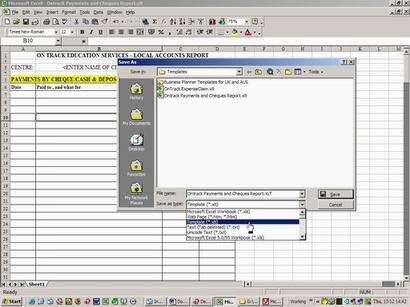
 Full size image
NOTE: Word, Excel and other Office applications will automatically go to the folder where templates are stored. Don't change this location. Other applications are likely to vary in how they do this.
The template you have created is now ready to use whenever it is needed. It will always open a new document that looks exactly as it did when you first created it.
Whenever you want to open a template click on File – New In Office 2000 or earlier, this will open the templates dialogue box. In Office 2003 onwards, it will open the task pane (if not already open).
Select General Templates (if not already selected) and then the template you want to use.
When you open the template, it will create a document with called “name-of-template1"followed by the file type extension.
Note the name of the file at the top

 Full size image
Save the file and name it as appropriate. For example, with the illustrations used, this file might be saved as something like: Centre4 Payments Report May05
Now you can enter data and use the document in the usual manner, but the template to create another document is available for the next time.
If you receive a file and want to create a template from it, just open the file and follow the steps shown in #2.